Import
There is a more efficient way to import your whole colony than entering mice via the mouse form by uploading a .csv file.
note
CSV stands for comma-separated values. Many applications such as MS Excel or Google Sheets allow for exporting data to CSV format.
Mouse-Cloud provides a .csv template for download. Before importing, you need to convert your .csv file into the same format as in the template. The order of columns is not important but the column header names are. This can be done via MS Excel or any text editor. If you need assistance, please let us know via the contact form on the home page.
These are the steps:
- Click on
Importon the toolbar at the top. - Click the
Download Templatelink.
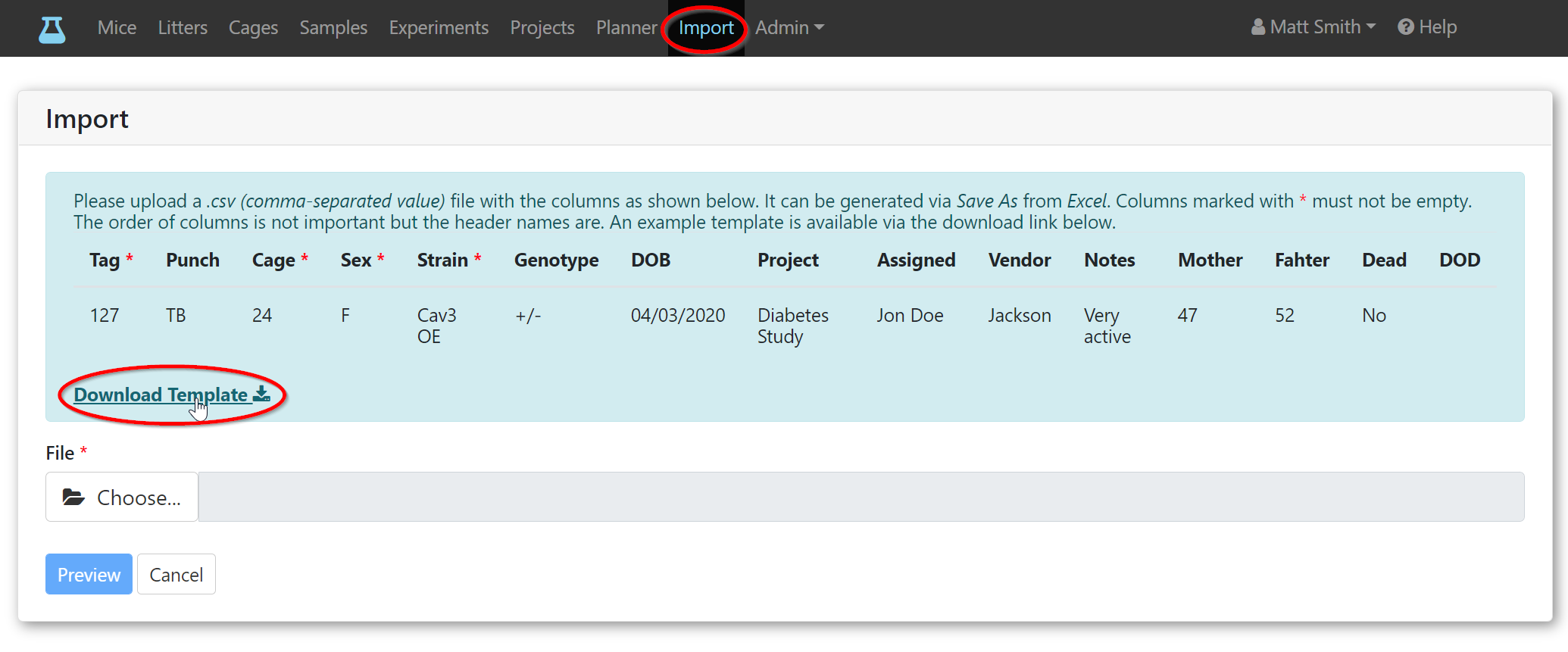
- Open the downloaded MouseCloudImport.csv file.
- Copy and past your colony data into the downloaded template or simply leave the template as is for now to get familiar with the process. Entries in the Assigned column must match the name on your account or someone on your team. You could also leave it empty for now and apply later. We recommend to add parts of your colony incrementally and test.

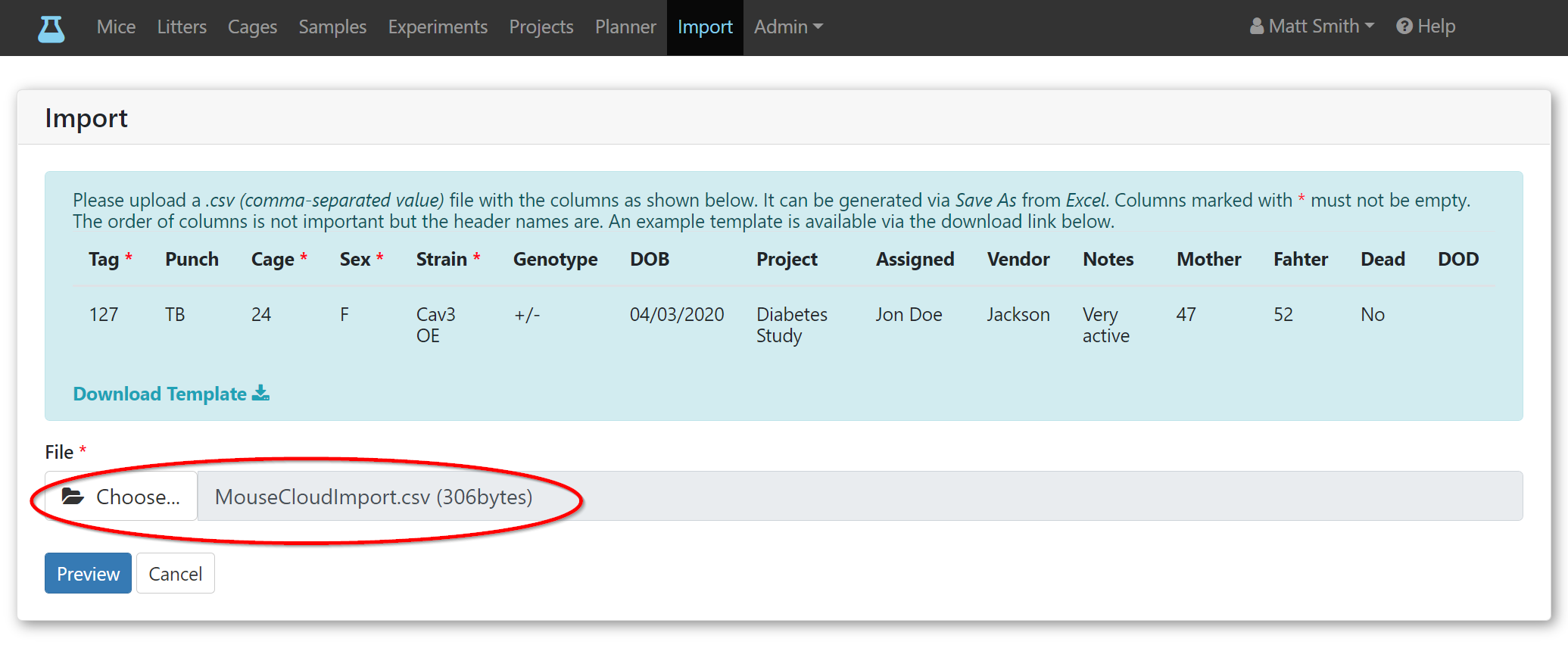
- Click the
Choose...button and select your updated MouseCloudImport.csv file. - Click the
Previewbutton.
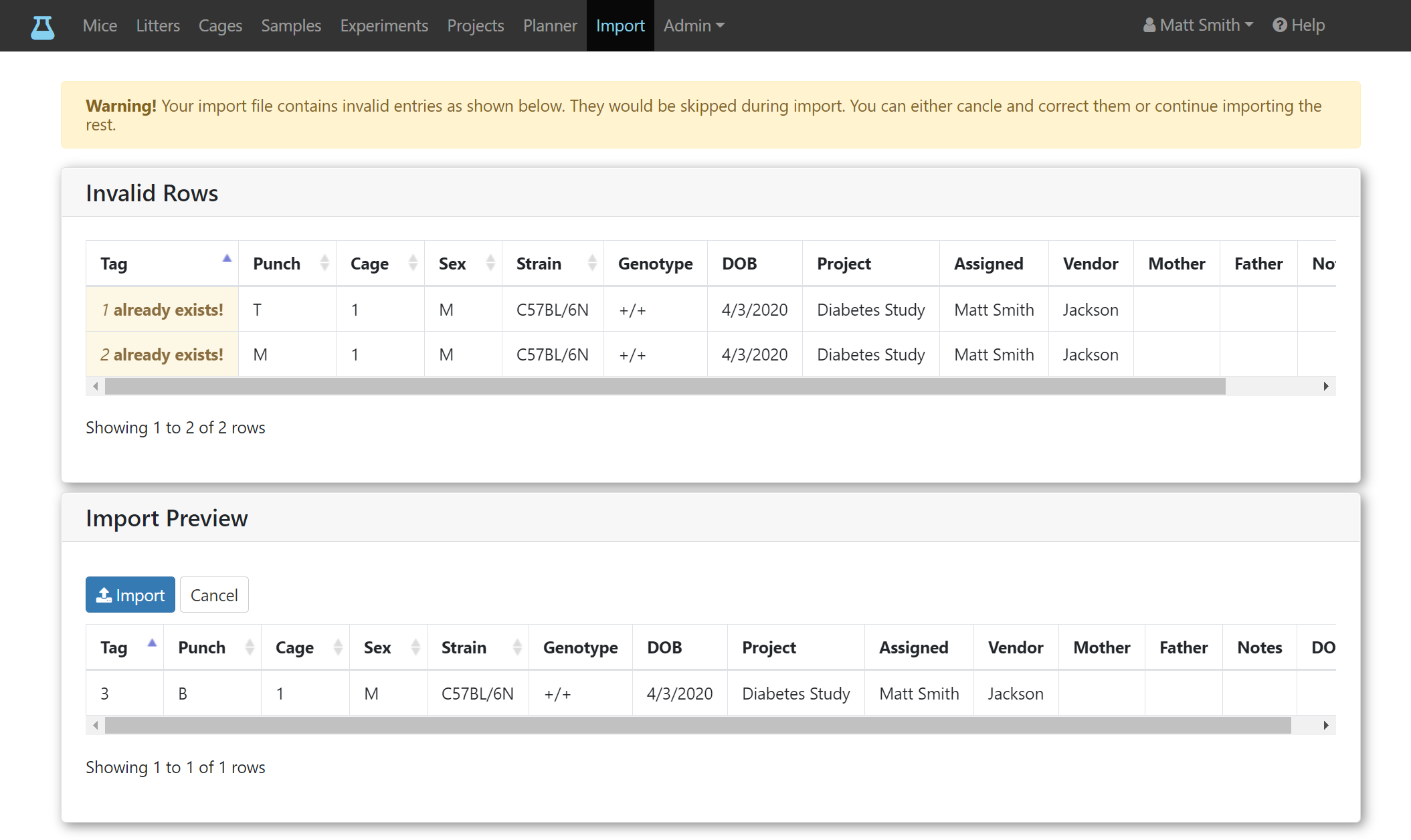
- The import preview shows what your data will look like in Mouse-Cloud and reports potential errors such as missing fields or duplicate tag numbers. If you added the two example mice via the mouse form as we did earlier and left the template unchanged, you should see two invalid rows with an already exists message next to the tag number for the duplicate tags 1 and 2 (the mice we entered and those being imported). You can either proceed with only importing rows without errors or cancel and fix all errors before uploading the .csv file again. Let's proceed with the import for now by clicking on the
Importbutton.
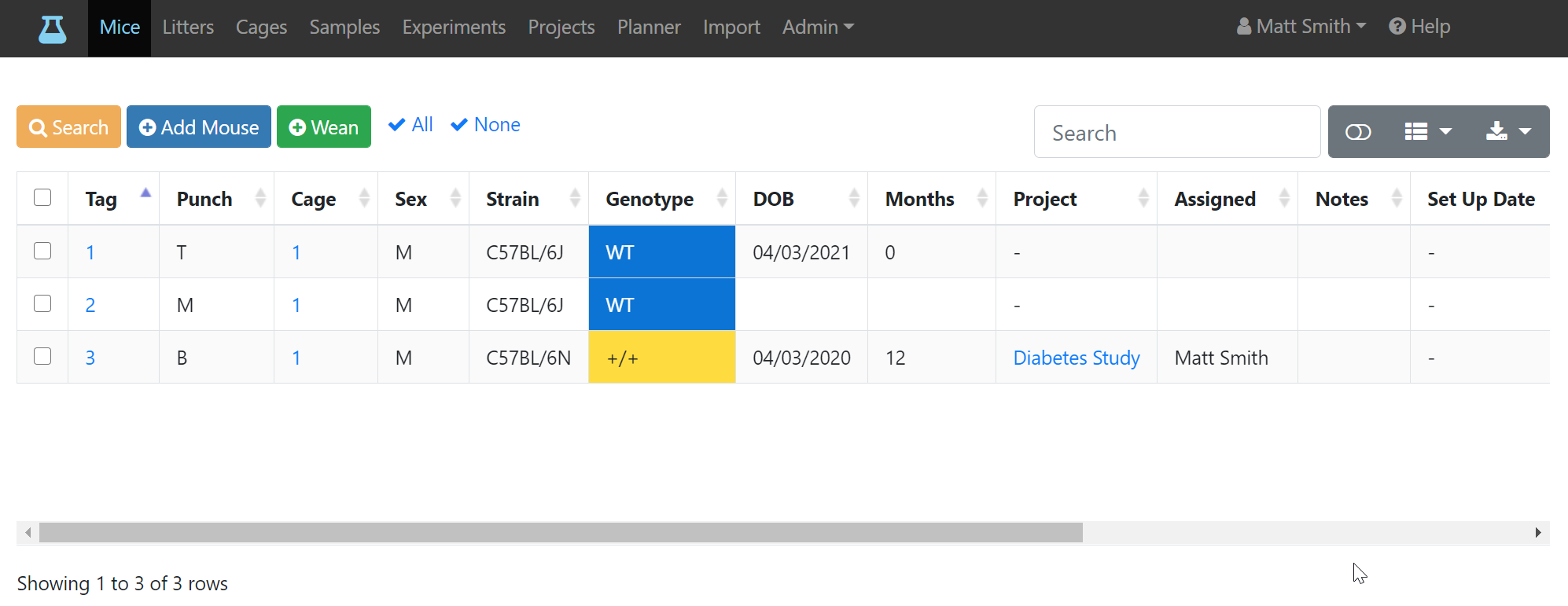
- The imported mice will display in the mouse list.